Server Basic Operations
Logging into the Server
The server supports Remote Desktop, ssh, and vscode login methods. vscode is recommended.
1. Using vscode [Most Recommended]
Go to the official website Download VSCODE and install it. Then install the Remote - SSH plugin. Use the plugin to access the remote server. Navigate to the project directory on the server and install the Python and Jupyter plugins.
Warning
When logging into a remote SSH for the first time with VSCODE, it will automatically download software and configure the environment on the server. Please be patient. VSCODE updates frequently, which can cause the Python and Jupyter environments to become outdated. If this happens, update VSCODE and restart the software. You can disable VSCODE auto-updates in the settings.
Error
Older WINDOWS computers have system issues that cause VSCODE's SSH connection to keep spinning or fail. Please download the latest software from the OPEN-SSH official website and add it to the search directory, replacing the original SSH.
2. Using ssh
On a Windows client computer, hold down the Win R shortcut key, enter cmd in the Run window that pops up. In the terminal command window that appears, enter the following command and input the password.
ssh chenxinfeng@10.50.60.6
Tips
If you want to log in without a password, you can search the internet for "ssh passwordless login".
3. Using Remote Desktop Login [Avoid]
On a Windows client computer, hold down the Win R shortcut key, enter mstc in the Run window that pops up. The Remote Desktop login window will appear.
Enter the server's IP address and Connect. Then enter the username and password.
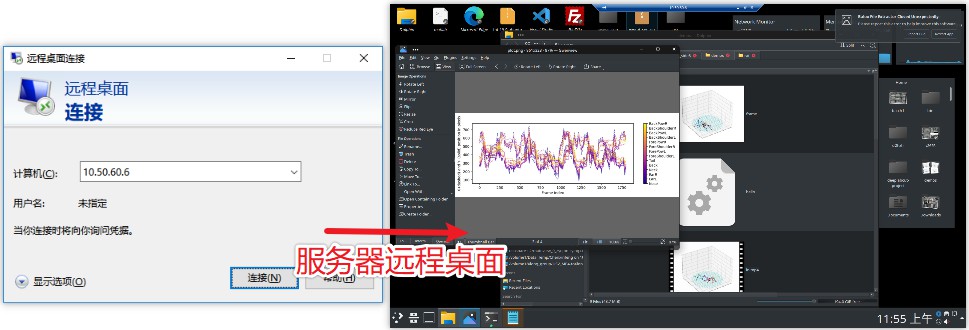
In general scenarios, VSCODE is recommended as the server connection tool. It is also recommended to install AI programming assistants like CodeGeeX in VSCODE (registration required).
| Suitable Scenarios | Disadvantages | |
|---|---|---|
| VSCODE | Text and code editing, jupyter analysis and plotting | Frequent updates, complicated environment configuration, consumes server performance |
| SSH | Running temporary scripts or modifying environment | Poor visualization |
| Remote Desktop | Graphical interface programs | Laggy, limited by network quality |
Some Basic Skills
- Use
htopto check CPU and memory usage - Use
nvcommand to check GPU usage.
Add the following commands to ~/.bashrc, then restart the terminal.
# Use `nv` command to check GPU usage
alias nv='watch -n 1 nvidia-smi'

# Use specific GPUs (0,1,2,3), other GPUs are not used
# $choosecuda 0,1,2,3   $choosecuda 3
function choosecuda {
    if [ -z "$1" ]; then num=0; else num="$1" ; fi
    CUDA_VISIBLE_DEVICES=$num
    export CUDA_VISIBLE_DEVICES
}

# Use killcuda to forcibly release GPU memory usage of the current account
# $killcuda
alias killcuda="ps -o pid= -u $(whoami) | \
grep -wFf  <( nvidia-smi -q -x | grep pid | sed -e 's/<pid>//g' -e 's/<\/pid>//g' -e 's/^[[:space:]]*//' | sort | uniq ) | \
xargs kill -9 "

# Use killcuda2 to forcibly release GPU memory usage of all accounts
# $sudo killcuda2
alias killcuda2="fuser -v /dev/nvidia-uvm  2> /dev/null | xargs kill -9 "

# Find files containing specific keywords in Python files in the current folder
# $findgrep WORDS
alias findgrep='find . -name "*.py" -type f -exec echo "{}" \; | xargs grep -n '
choosecudais used to select GPU IDs.killcudaandkillcuda2are used to release GPU usage.
Warning
Before using GPU, first check the GPU usage with the nv command, and use choosecuda to select idle GPUs. If a GPU has high memory usage but low computing utilization, use killcuda to release it. choosecuda is only temporarily effective for the current terminal, and will be invalid after terminal restart or across terminals.
-
findgrepis used to search for keywords in Python code -
Mount the Synology cloud disk path to the server. Replace
usernamewith the Synology username anduidwith the server account username. The Synology user password will be required.
sudo mkdir /mnt/liying.cibr.ac.cn_usb3  #Create folder

# Mount the Synology path to the server
sudo mount -t cifs -o \
 vers=2.0,username=chenxinfeng \
 //liying.cibr.ac.cn/usbshare3-2 \
 /mnt/liying.cibr.ac.cn_usb3/ -o \
 uid=chenxinfeng,file_mode=0766,dir_mode=0777
Warning
file_mode=0766,dir_mode=0777 permissions are too broad, giving all users modification permissions for Synology files. This may pose a risk to Synology files. If permissions are too tight, mounting may not work smoothly. Please control file_mode and dir_mod permissions as needed.